
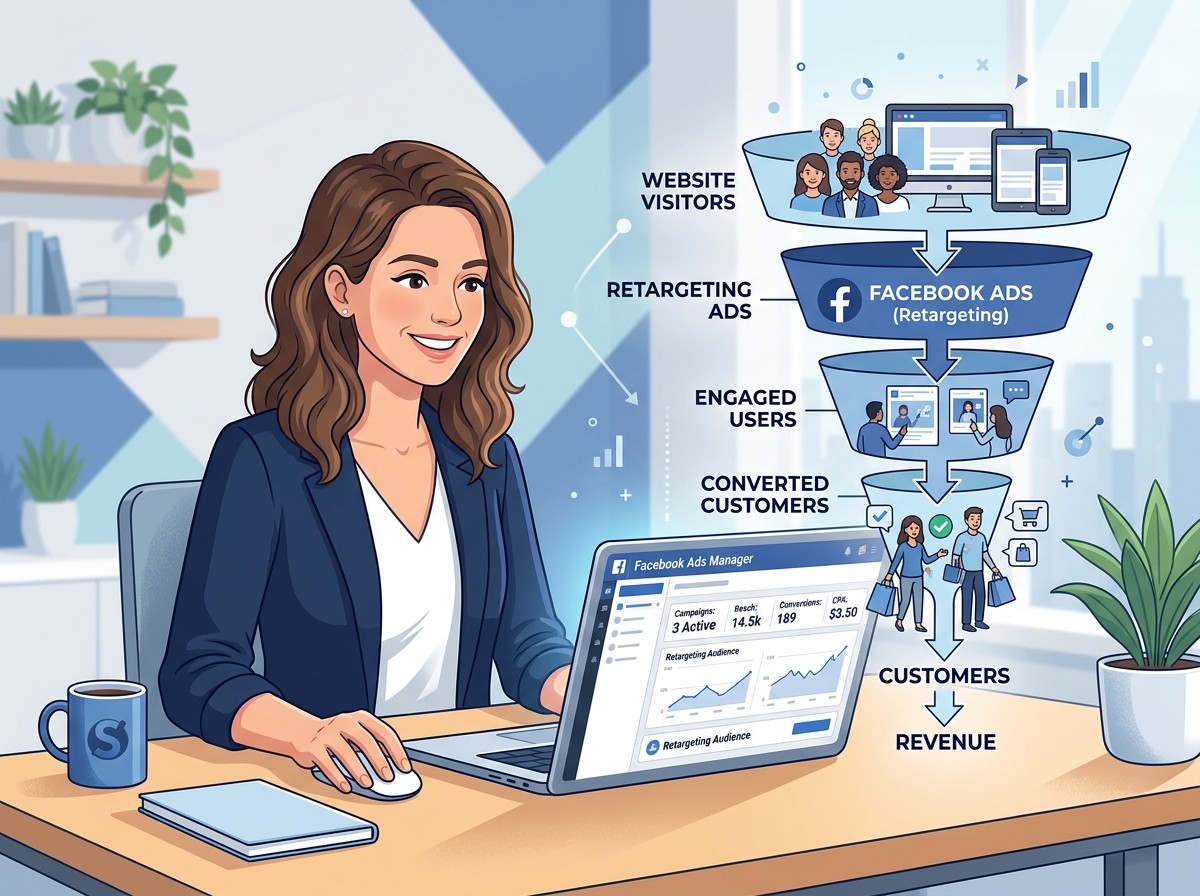
If someone visits your website but leaves without buying, booking, or signing up — that doesn’t have to be the end of the story. A well-executed Facebook retargeting campaign setup lets you follow up with those visitors using targeted ads, reminding them why they were interested in the first place. It’s one of the highest-ROI strategies available to small businesses, and the good news is you don’t need to be a tech wizard to make it work.
In this guide, we’ll walk you through exactly how to set up a Facebook retargeting campaign from scratch — step by step, in plain English.
What Is Facebook Retargeting and Why Does It Matter?
Facebook retargeting (also called remarketing) is the process of showing ads specifically to people who have already interacted with your business — whether they visited your website, watched a video, or engaged with your social media page. These people already know who you are, which makes them far more likely to convert than a cold audience.
Studies consistently show that retargeted visitors are 70% more likely to convert than first-time visitors. For small businesses with limited ad budgets, this kind of precision targeting means you’re spending money on people who are already warm leads — not strangers who’ve never heard of you.
If you’re already investing in SEO or social media content to drive traffic, retargeting is the natural next step to make sure that traffic actually turns into revenue. You can learn more about building a strong foundation in our social media marketing tips guide.
Step 1 — Install the Facebook Pixel on Your Website
Before you can retarget anyone, Facebook needs a way to track who’s visiting your site. That’s where the Facebook Pixel comes in. It’s a small piece of code you install on your website that silently tracks visitor behavior and sends that data back to your Facebook Ads Manager.
How to Create and Install Your Pixel
- Go to Meta Business Suite and open Events Manager
- Click “Connect Data Sources” and select Web
- Choose Facebook Pixel and give it a name
- Install the code manually on your website, or use a partner integration (like WordPress, Shopify, or Wix)
- Use the Meta Pixel Helper Chrome extension to confirm it’s firing correctly
Once your pixel is live, it starts collecting data immediately. Give it a few days to gather enough visitors before you build your first audience — ideally you want at least 100–500 website visitors in your custom audience before launching ads.
Step 2 — Build Your Custom Audience
Now that your pixel is tracking visitors, it’s time to create a Custom Audience — the group of people your retargeting ads will actually reach. This is where the magic happens, because you get to be very specific about who sees your ads.
Types of Custom Audiences You Can Create
- All website visitors — Anyone who visited your site in the last 30, 60, or 180 days
- Specific page visitors — People who visited your pricing page, a product page, or your booking form
- Time-based segments — Visitors who spent the most time on your site (high intent)
- Video viewers — People who watched 50% or more of a video you posted
- Customer list — Upload an email list and match it to Facebook profiles
For most small businesses just getting started, we recommend targeting all website visitors from the last 30 days as your first audience. As you gather more data, you can get more granular and create separate campaigns for different segments.
How to Create the Audience in Ads Manager
- In Ads Manager, go to Audiences under the main menu
- Click “Create Audience” → Custom Audience → Website
- Select your pixel, choose your conditions (e.g., all visitors), and set your date range
- Name your audience clearly (e.g., “Website Visitors – Last 30 Days”) and save it
Step 3 — Create Your Retargeting Campaign in Ads Manager
With your pixel installed and your audience built, you’re ready to launch your actual Facebook retargeting campaign setup. Head into Ads Manager and click the green “Create” button to get started.
Choosing the Right Campaign Objective
For retargeting, the most effective objectives are typically Conversions, Traffic, or Leads — depending on what action you want people to take. If you want them to purchase or book, choose Conversions. If you just want them back on your site, Traffic works well.
Setting Up Your Ad Set
- Under Audience, select the Custom Audience you just created
- Set your location, age, and gender if needed (often you can leave these broad for retargeting)
- Choose your placements — Automatic Placements works well for beginners
- Set a daily or lifetime budget — even $5–$10/day can be effective for retargeting small audiences
Crafting Your Retargeting Ad Creative
Your ad creative should feel like a natural follow-up, not a hard sell. Remind people what they looked at, offer a reason to come back (a discount, a testimonial, or a limited-time offer), and use a clear call-to-action like “Book Now,” “Get Your Free Quote,” or “Shop the Sale.”
Use high-quality images or short videos, keep your copy concise, and make sure your landing page matches the message in your ad. Consistency between your ad and your landing page is one of the biggest factors in conversion rate. For more on optimizing your pages, check out our website design tips for small business.
Key Takeaways
- Install the Facebook Pixel on your website before anything else — it’s the foundation of every retargeting campaign
- Build a Custom Audience from your website visitors before spending a single dollar on ads
- Start simple: target all website visitors from the last 30 days, then get more specific as your data grows
- Your ad creative should feel like a helpful reminder, not a pushy sales pitch
- Even a small daily budget of $5–$10 can deliver strong results when you’re targeting a warm, pre-qualified audience
Ready to Turn Your Website Traffic Into Real Revenue?
A proper Facebook retargeting campaign setup can be a game-changer for your business — especially if you’re already putting effort into driving traffic through SEO, content, or social media. The people who visited your site were interested. Retargeting gives you a second chance to win them over.
If you’d rather have an expert handle your Facebook ads strategy while you focus on running your business, we’re here to help. Our team at LetsGetSocialOnline.com specializes in building high-converting ad campaigns for small businesses and entrepreneurs. We also offer AI-powered digital marketing tools to help you work smarter, not harder.
Let’s build something that actually converts. Contact us today to get started with a free strategy consultation.